

- Dataset: A set of test inputs (and optionally, expected outputs).
- Target function: The part of your application you want to test—this might be a single LLM call with a new prompt, one module, or your entire workflow.
- Evaluators: Functions that score your target function’s outputs.
Prerequisites
Before you begin, make sure you have:- A LangSmith account: Sign up or log in at smith.langchain.com.
- A LangSmith API key: Follow the Create an API key guide.
- An OpenAI API key: Generate this from the OpenAI dashboard.
- UI
- SDK
1. Set workspace secrets
在 LangSmith UI 中,确保你的 API 密钥已设置为工作区密钥。- 导航至 设置,然后进入 密钥 选项卡。
- 选择 添加密钥,输入密钥环境变量(例如,
OPENAI_API_KEY或ANTHROPIC_API_KEY),并将你的 API 密钥作为 值 填入。 - 选择 保存密钥。
在 LangSmith UI 中添加工作区密钥时,请确保密钥名称与你的模型提供商所要求的环境变量名称一致。
如果你的提供商使用 OAuth2
client_credentials 进行认证,请改为在模型配置中设置凭据。在这种情况下,无需使用工作区密钥。请参阅 OAuth 客户端凭据。2. Create a prompt
The Playground makes it possible to run evaluations over different prompts, new models, or test different model configurations.- In the LangSmith UI, click Playground in the sidebar.
-
Under the Prompts panel, modify the system prompt to:
Leave the Human message as is:
{question}.
3. Create a dataset
- Click Set up Evaluation, which will open a New Experiment table at the bottom of the page.
-
In the Select or create a new dataset dropdown, click the + New button to create a new dataset.
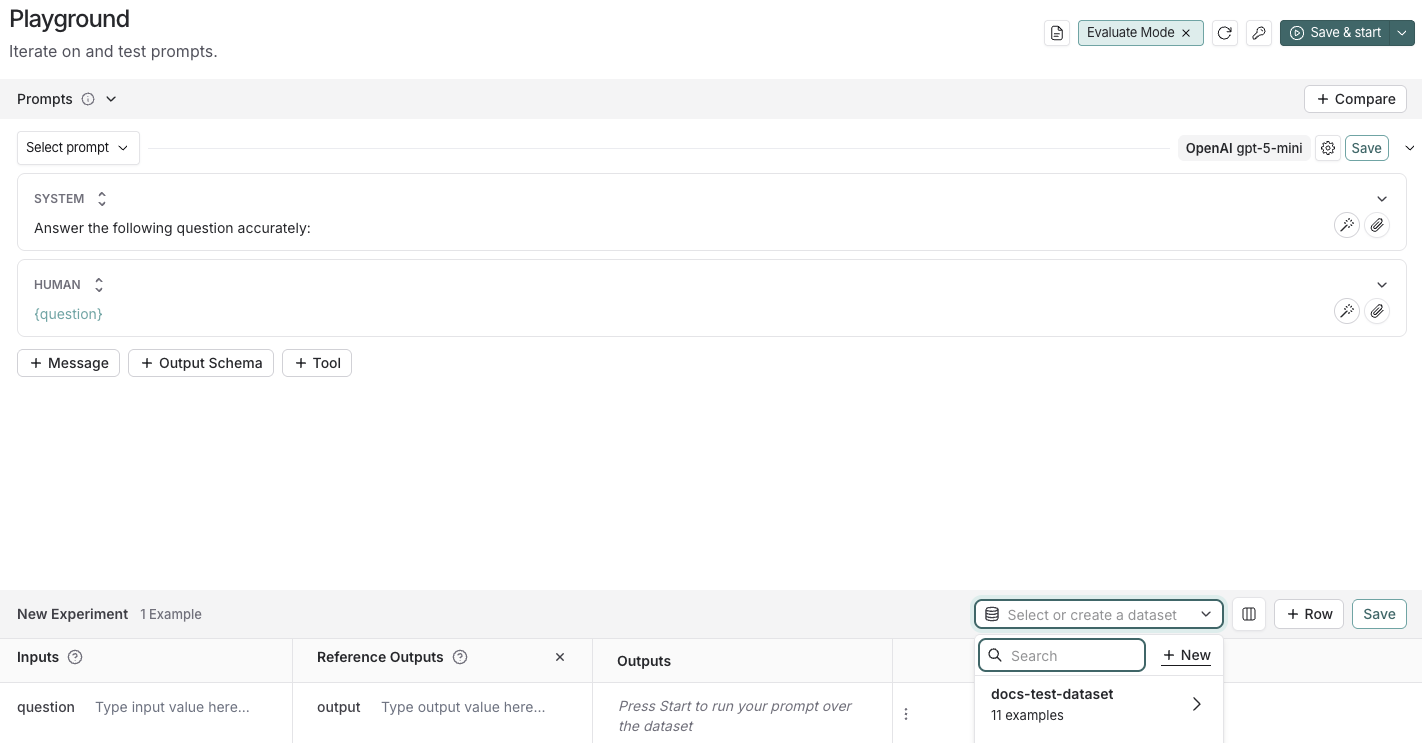
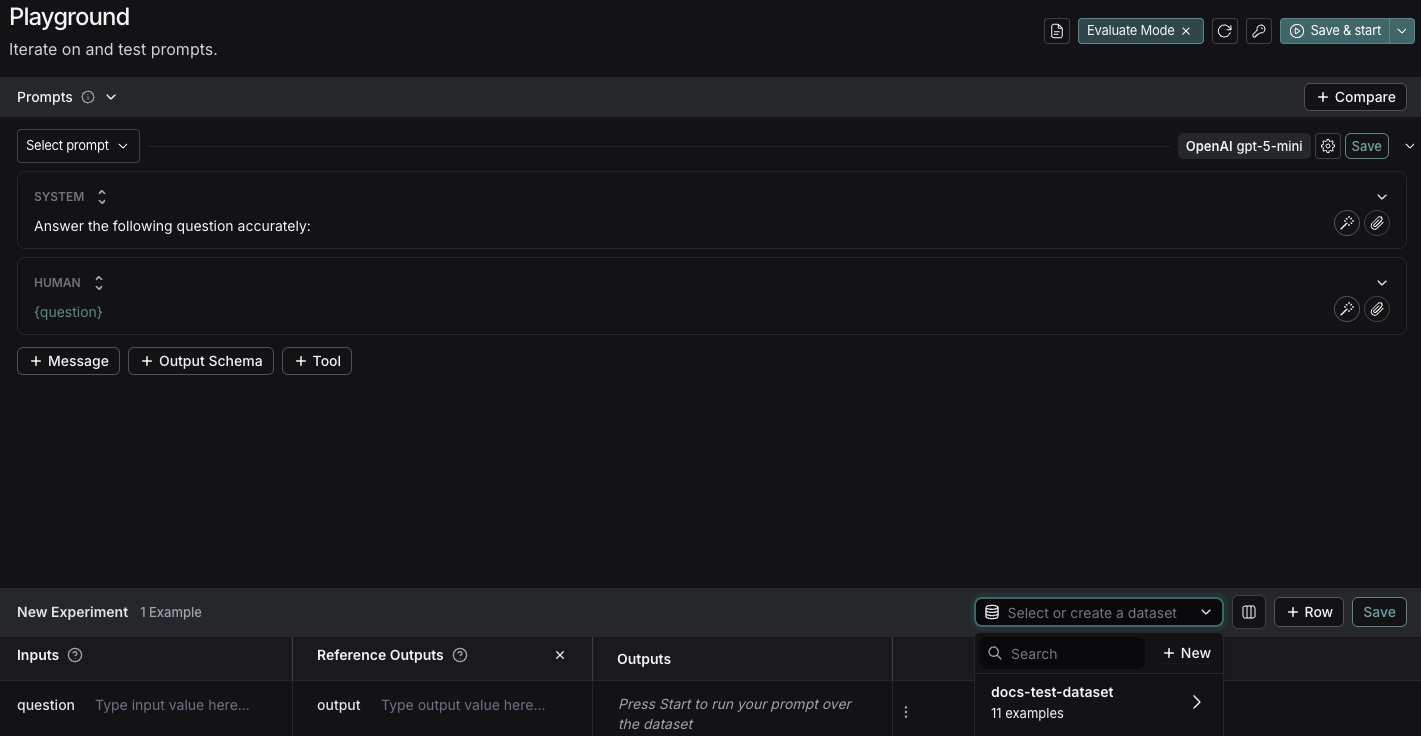
-
Add the following examples to the dataset:
- Click Save and enter a name to save your newly created dataset.
4. Add an evaluator
- Click + Evaluator and select Correctness from the Prebuilt Evaluator options.
- In the Correctness panel, click Save.
5. Run your evaluation
-
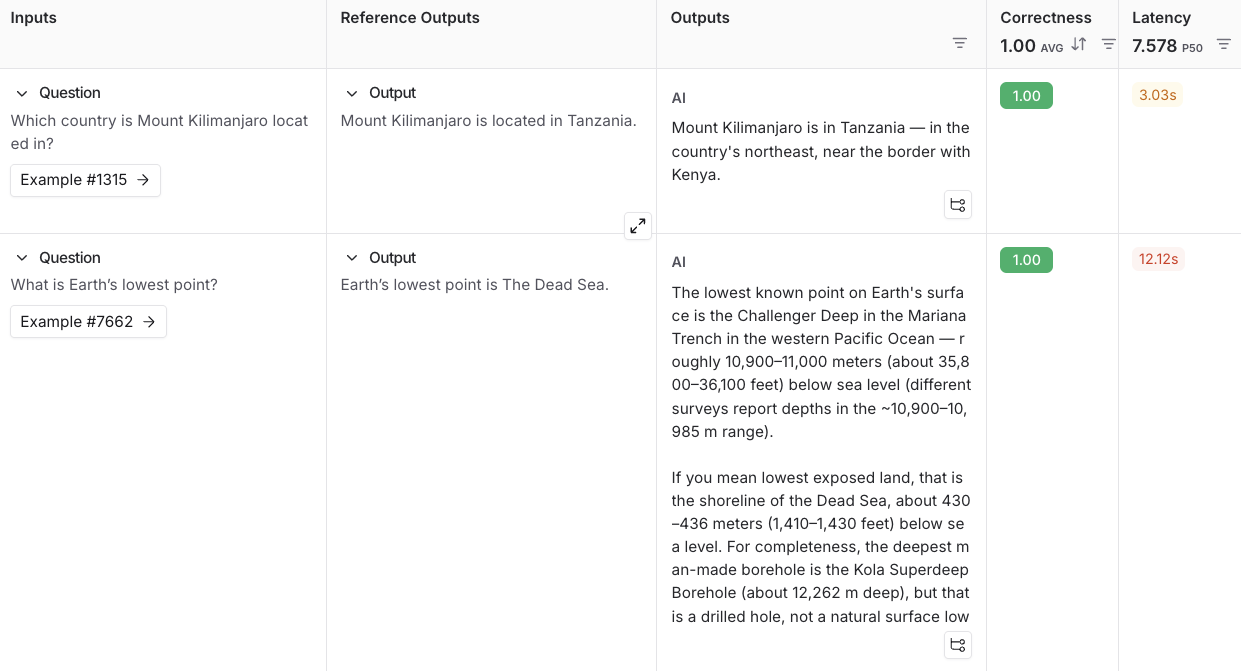
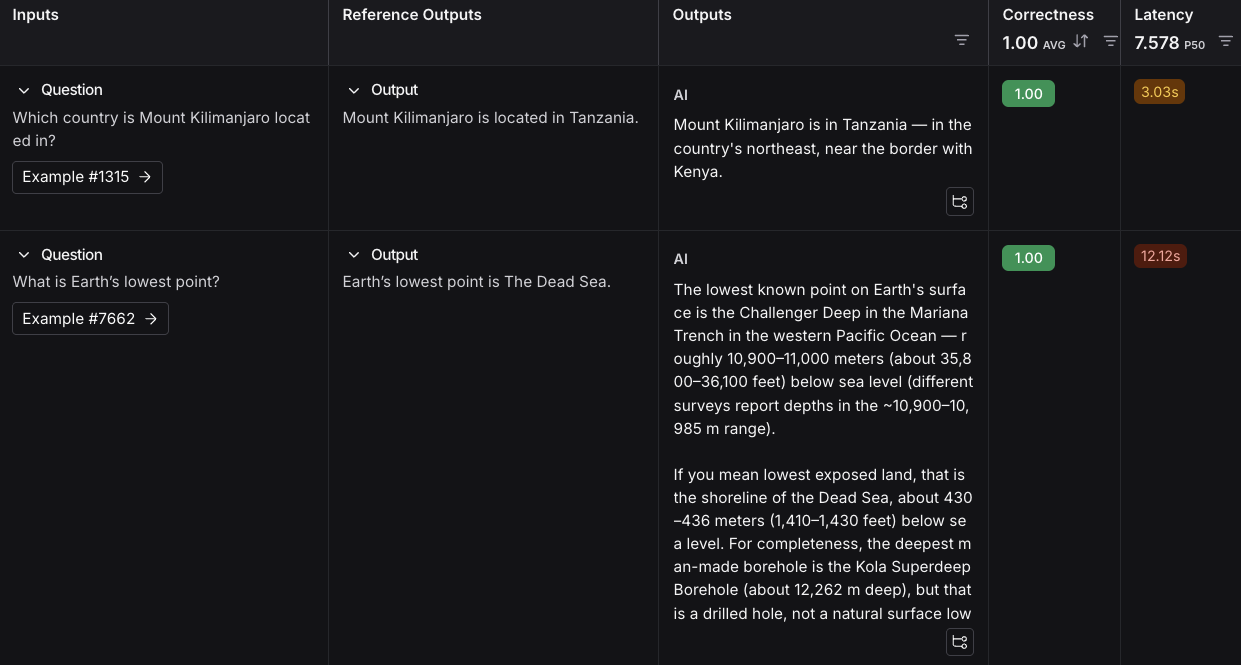
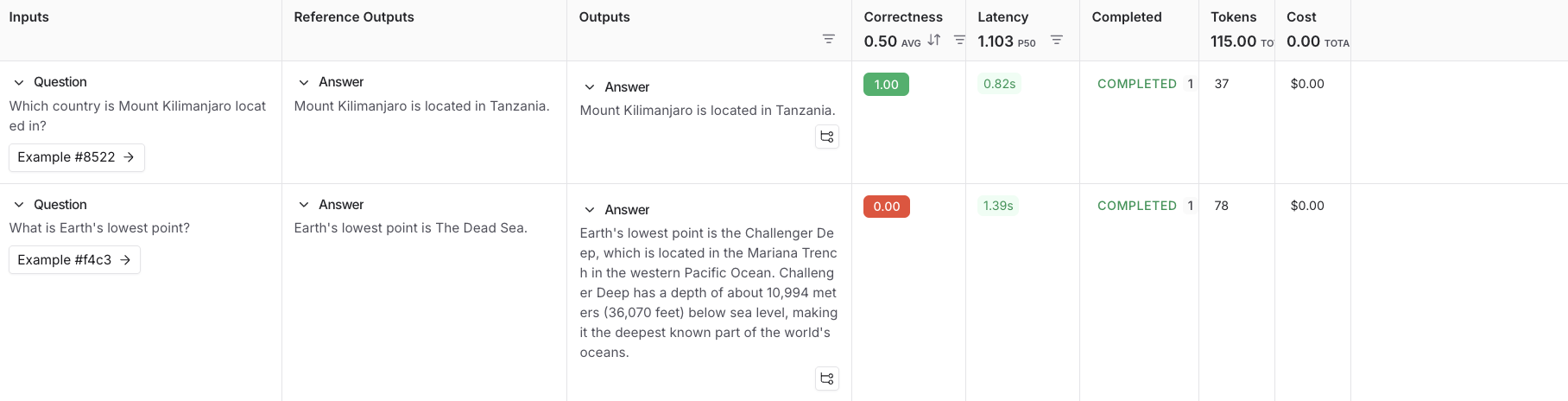
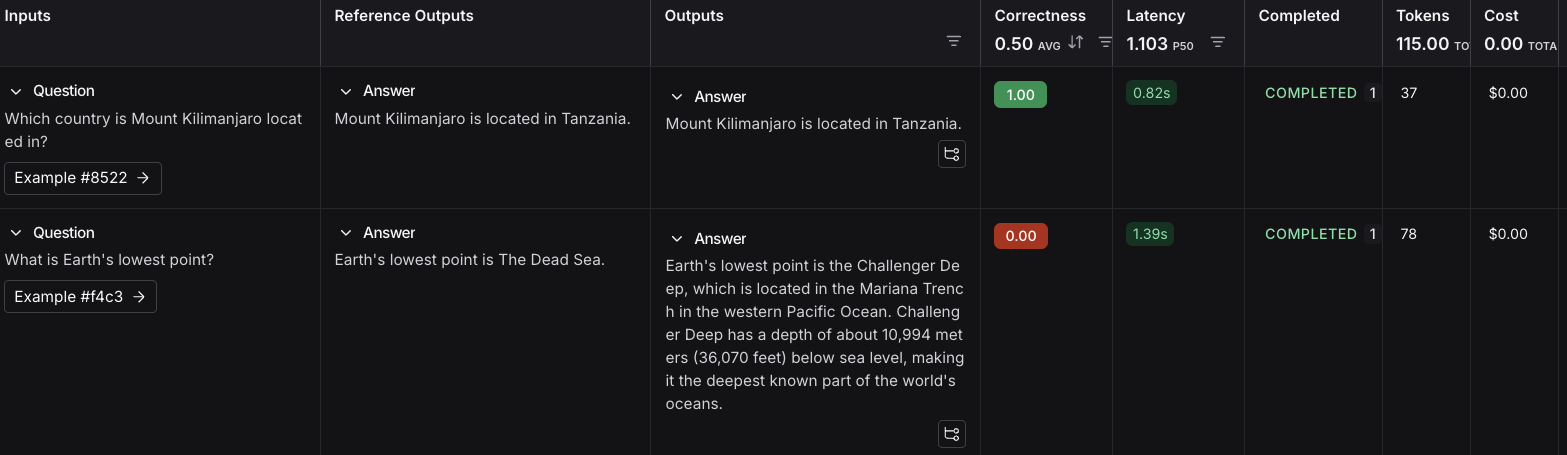
Select Start on the top right to run your evaluation. This will create an experiment with a preview in the New Experiment table. You can view in full by clicking the experiment name.
Next steps
- For more details on evaluations, refer to the Evaluation documentation.
- Learn how to create and manage datasets in the UI.
- Learn how to run an evaluation from the Playground.
Connect these docs to Claude, VSCode, and more via MCP for real-time answers.